TABLE OF CONTENTS
- Requirements
- Step 1: Navigate to ‘Connectors’
- Step 2: Create a New Connector
- Step 3: Connect to the Data Source
- Locating credentials
Requirements
- Connector setup is only available to users with the Owner role.
- You must have created an App registration in Entra ID first.
Step 1: Navigate to ‘Connectors’
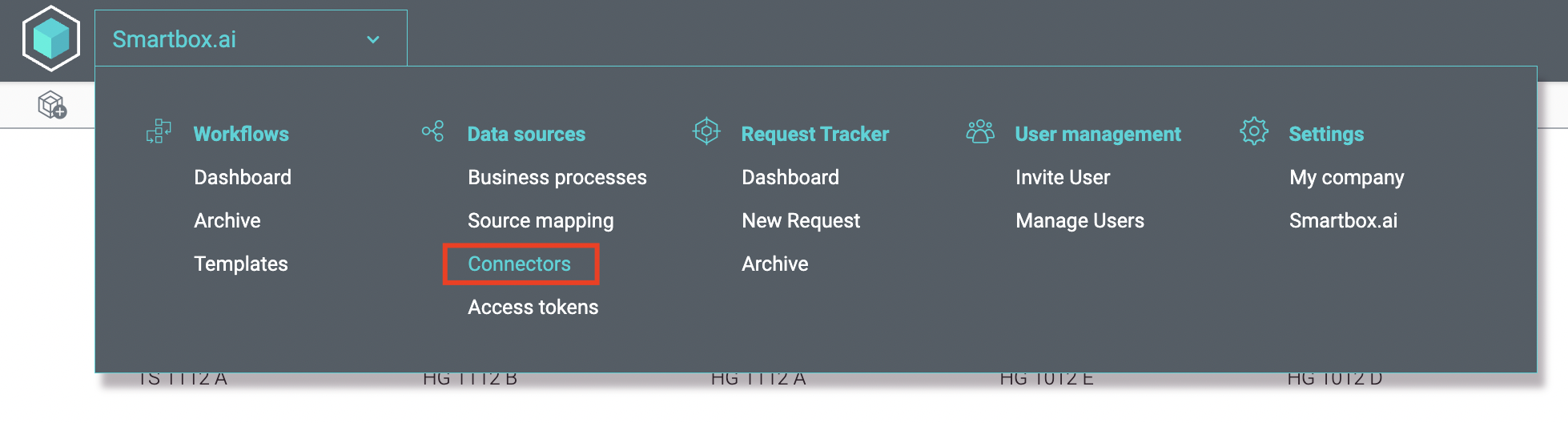
- From the application drop-down menu, select Connectors under Data sources.
- You will be taken to the Connector homepage, which lists all existing connectors with the following details:
- Connector Name
- Connected With – the authentication method used
- Credential Owner
- Status – Connected / Unconnected / Connection Expired
- Connection Expiration Date – how long the connection remains valid
Step 2: Create a New Connector
- Click the plus (+) icon on the right-hand side to open the connector creation window.
- Enter the following information:
- Connector – the external application you want to connect to
- Connector Name - to distinguish it from other connectors
- Connected With– the authentication method you want to use
- Credential Owner – the owner of the connector or authentication details
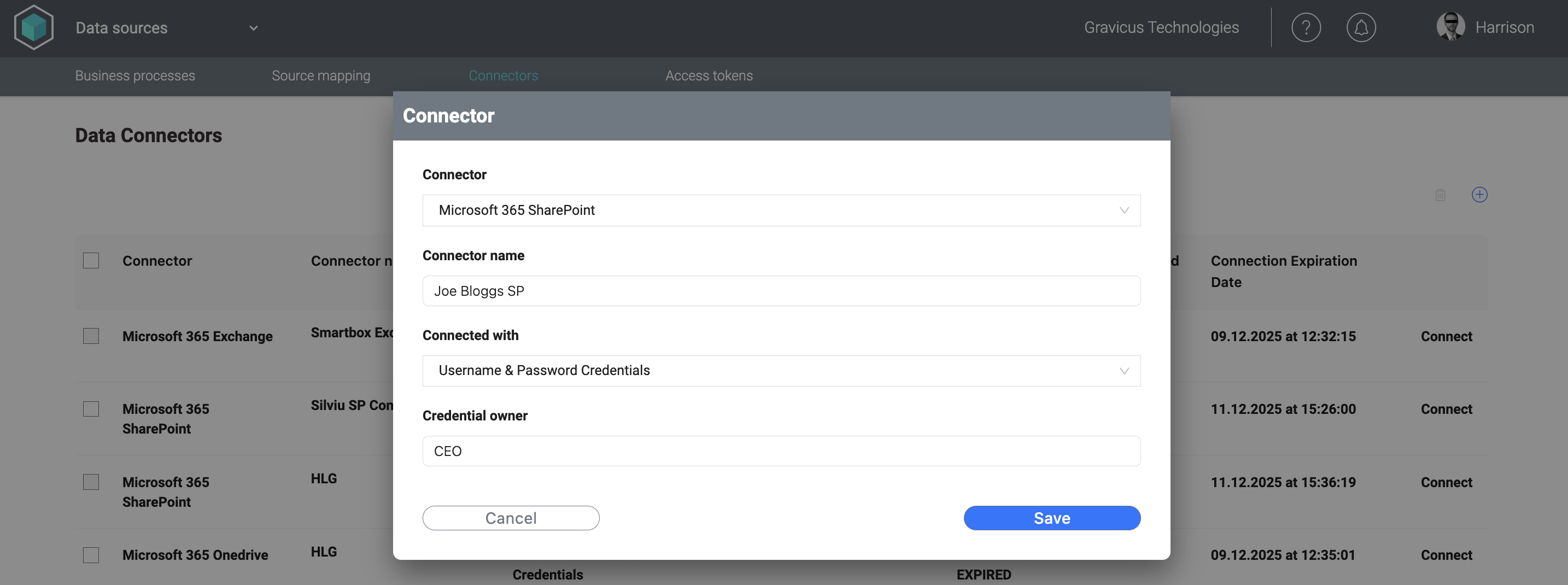
- Click Save to create the connector.
Step 3: Connect to the Data Source
- Click Connect on the right-hand side of your connector to launch the authentication window.
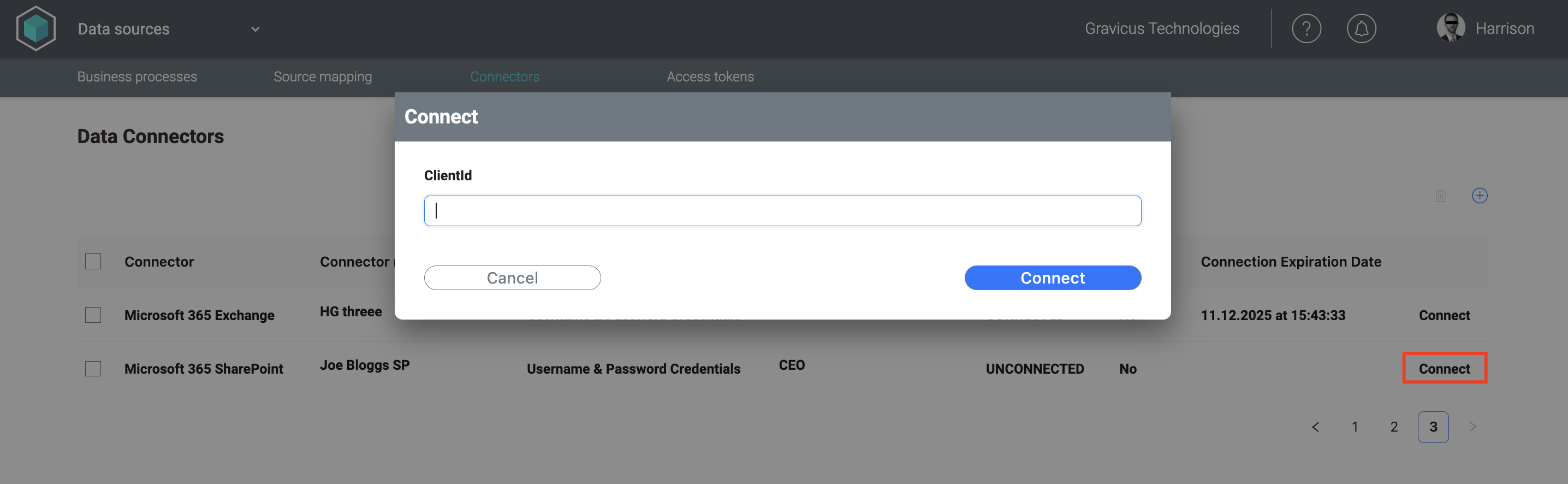
- Depending on the authentication method, the required credentials will vary (see below on how to find each credential):
Client Credentials - best for accessing other users' data
- ClientID
- UserID
- AppSecretValue
- TenantID
Username & Password - best for accessing your own data
- ClientID
- Microsoft Username & Password (plus MFA if enabled)
- Enter the required information and click Connect.
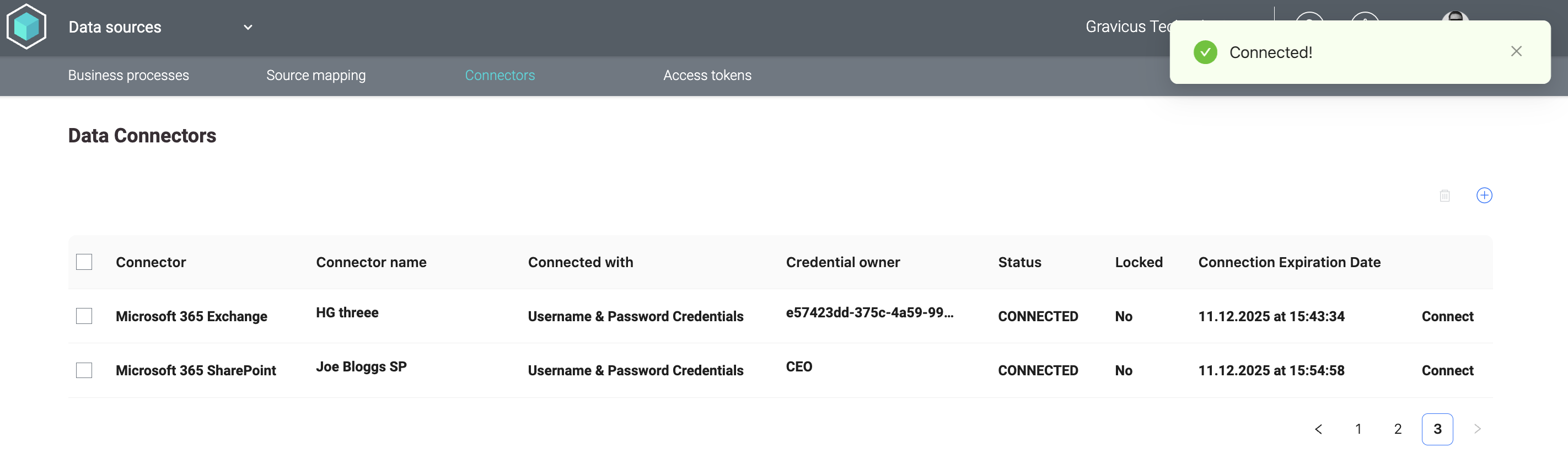
- If authentication is successful, the Status of the connector will change from Unconnected to Connected.
Locating credentials
All credentials required to set up a connector can be found in your Entra ID account.
| ClientID The ID of your App Registration. Entra ID -> App registrations -> All applications -> Application (client) ID | 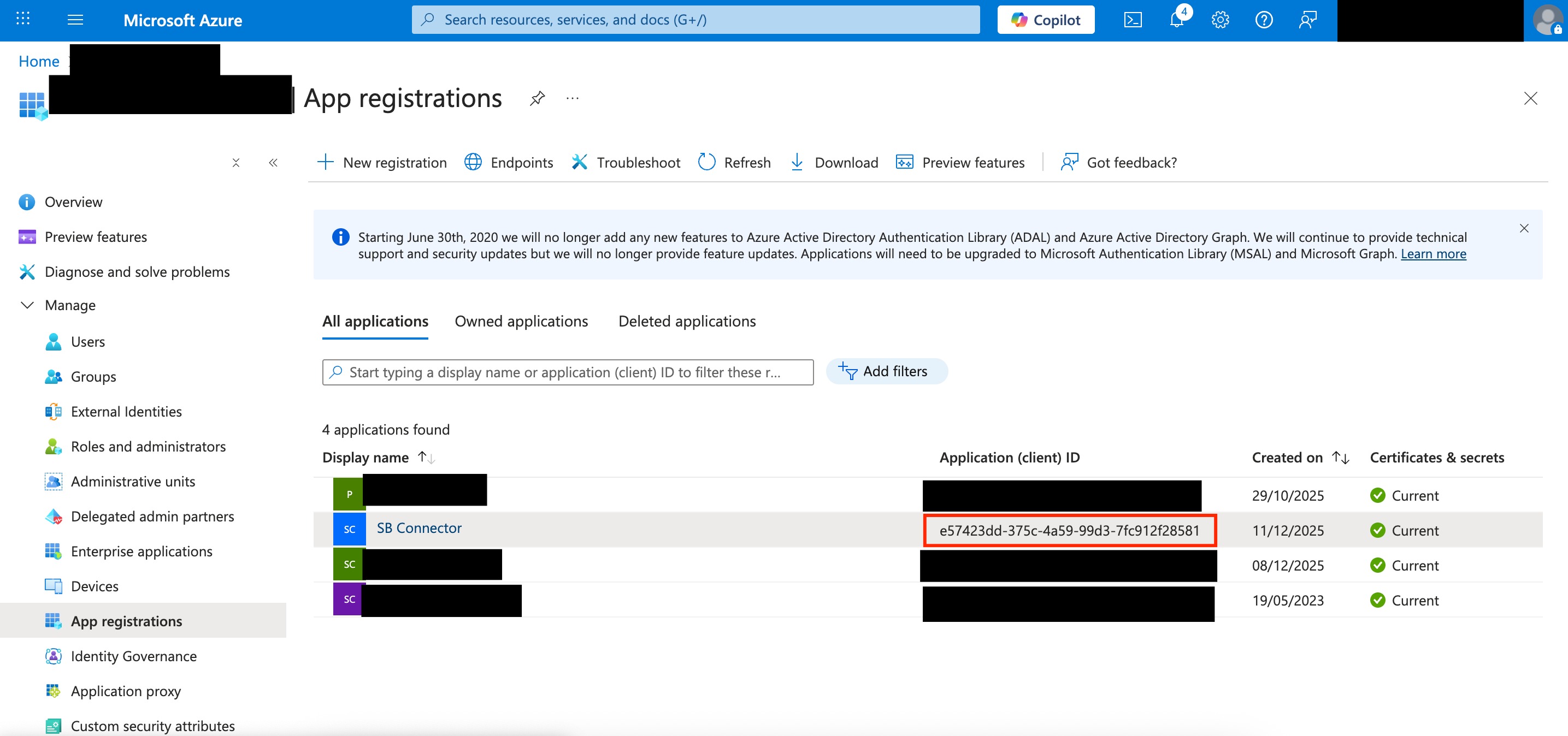 |
| UserID The ID of the user whose data you wish to import. Entra ID -> Manage (Users) -> [User] Display name -> Object ID | 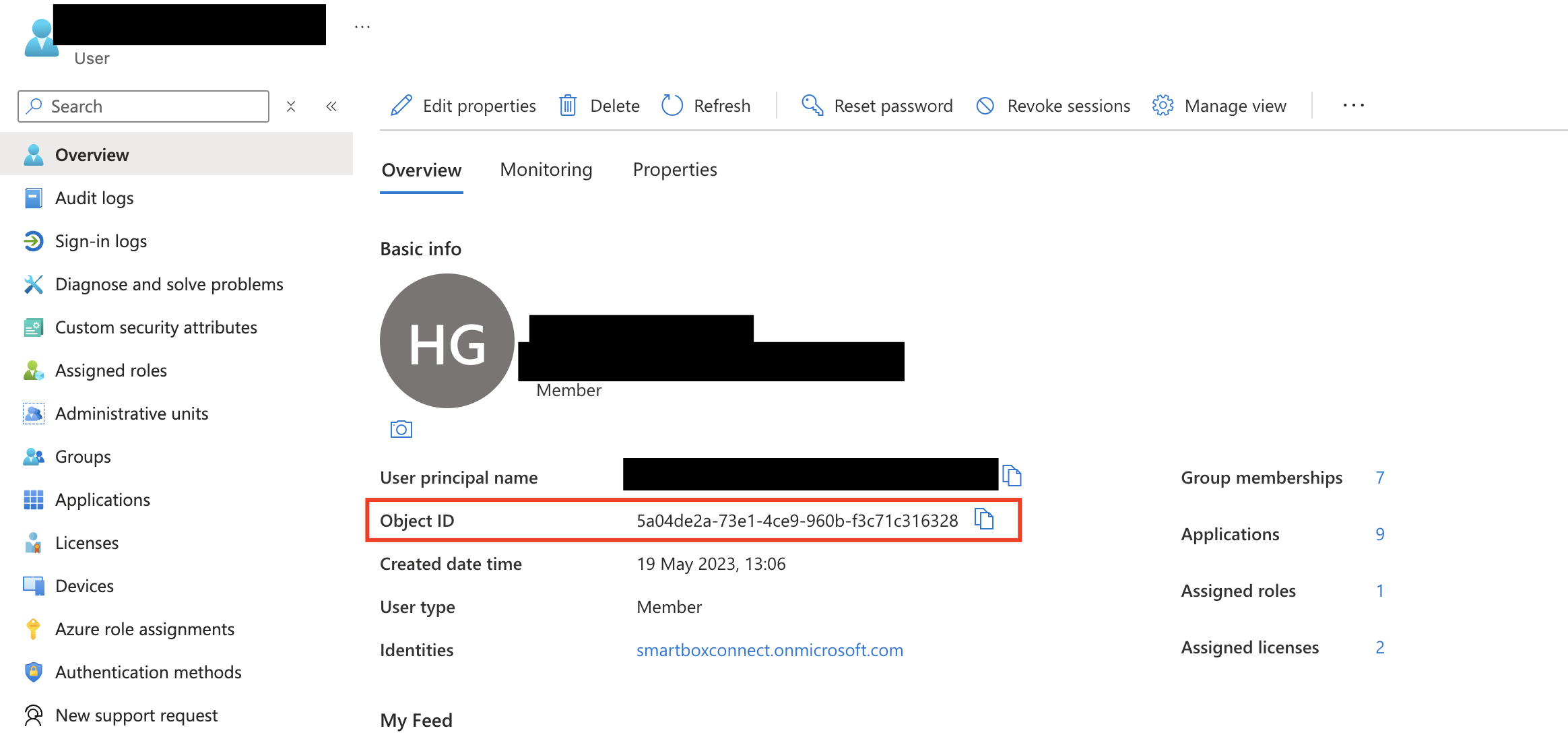 |
| AppSecretValue The authentication key for your App Registration. Entra ID -> App registrations -> All applications -> [App] Display name -> Certificates & secrets -> Value | 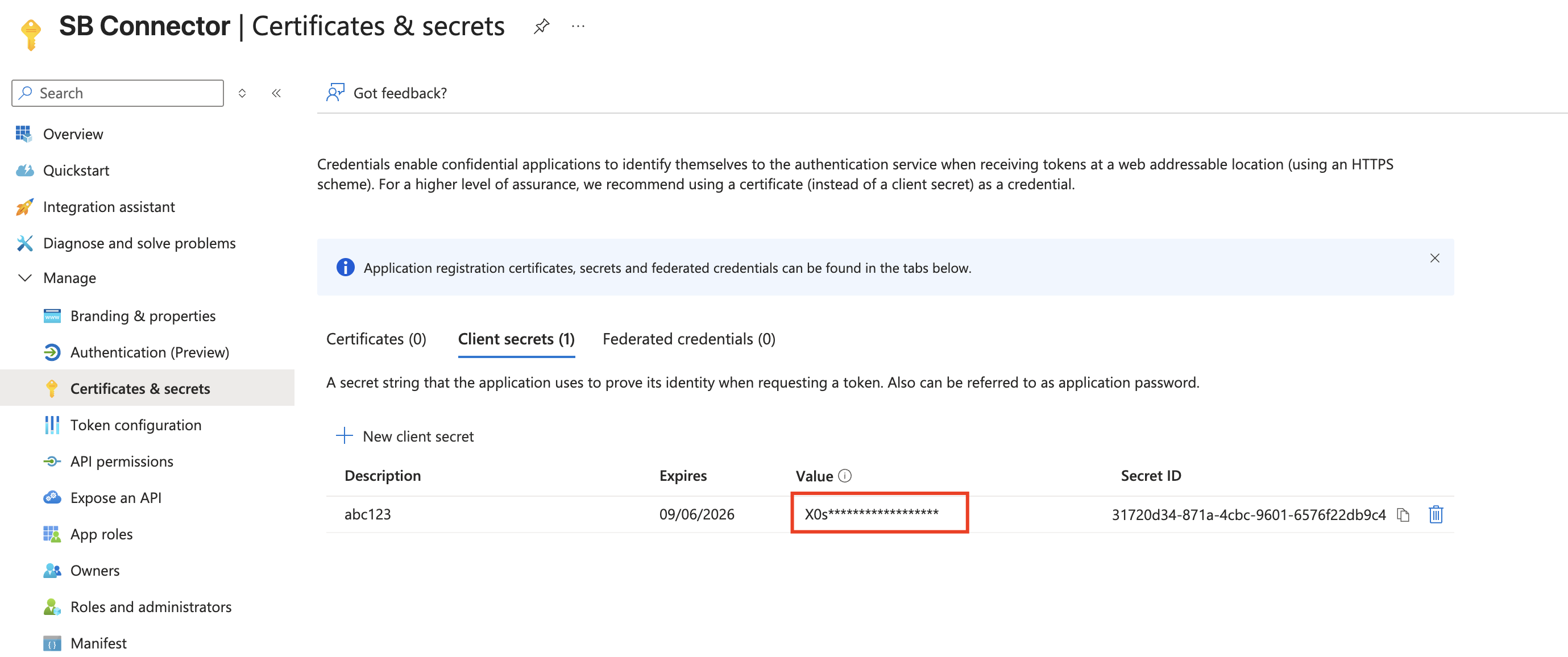 |
| TenantID The ID of your organisation's Microsoft tenant. Entra ID -> Overview -> Tenant ID | 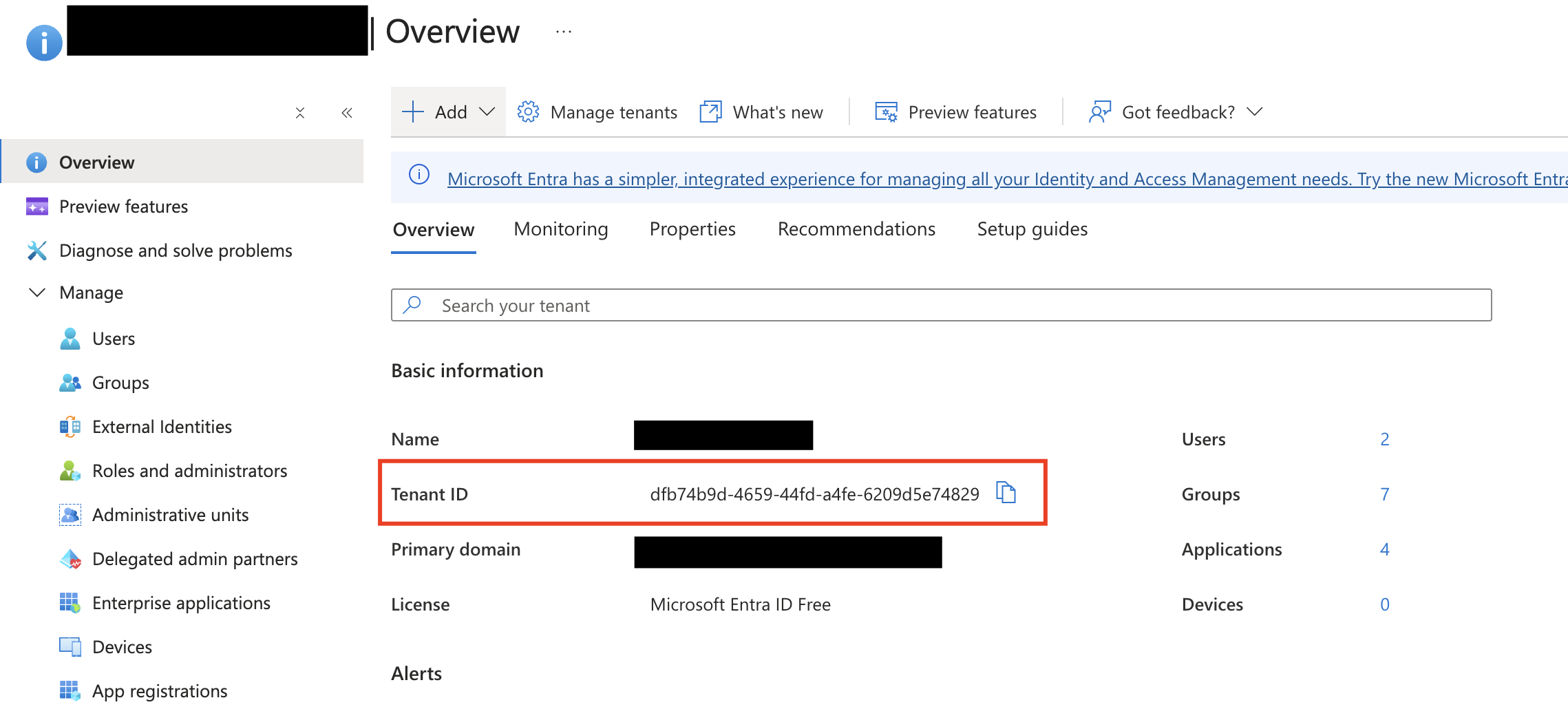 |
Was this article helpful?
That’s Great!
Thank you for your feedback
Sorry! We couldn't be helpful
Thank you for your feedback
Feedback sent
We appreciate your effort and will try to fix the article