TABLE OF CONTENTS
Overview
Single Sign-On (SSO) allows users to sign into Smartbox using their corporate credentials, rather than a separate set of credentials used only for Smartbox.
Note:
- Only account Owners have necessary permissions to enable/disable SSO.
- It is only possible to have EITHER Single Sign-On OR username/password enabled at any one time.
- A Microsoft Tenant ID must be input to enable SSO. Only users from the specified tenants will be permitted access to Smartbox - login with a tenant mismatch will not be authorised.
- The MFA toggle in Company Settings only applies to signing in with username & password. MFA for SSO is determined by your corporate provider settings.
- Currently Microsoft SSO is available, with other providers coming in the future.
- We do not store your password. Authentication is handled securely through your corporate provider.
- You may revoke access to the application anytime.
Enable SSO
- Navigate to Company Settings.
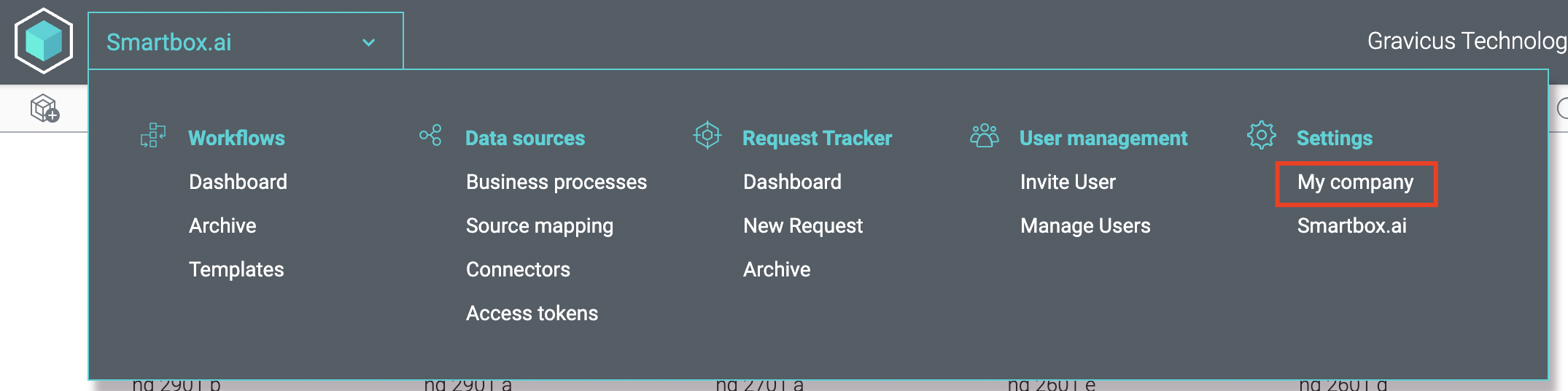
- Under Enable Single Sign-On?, switch the toggle to YES.
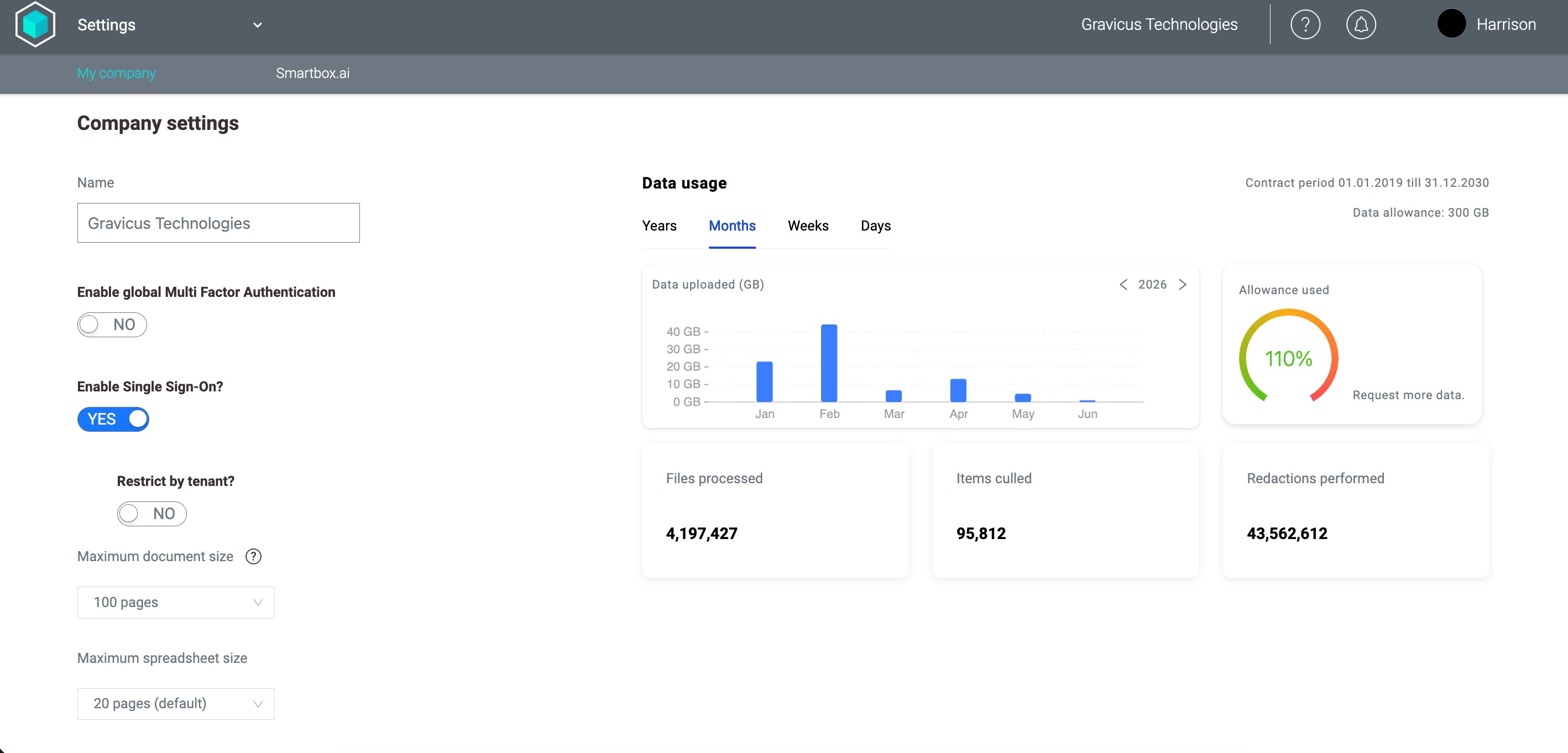
- (Optional) To restrict access to users from specific Microsoft tenants only, enable Restrict by tenant.
- Switch Restrict by tenant to YES.
- Enter up to three Microsoft Tenant IDs.
- Use the + and − buttons to add or remove tenant entries.
- Users signing in from any other Microsoft tenant will be blocked from accessing your account.
- Need help finding your Tenant ID? How to find your tenant ID [External link].
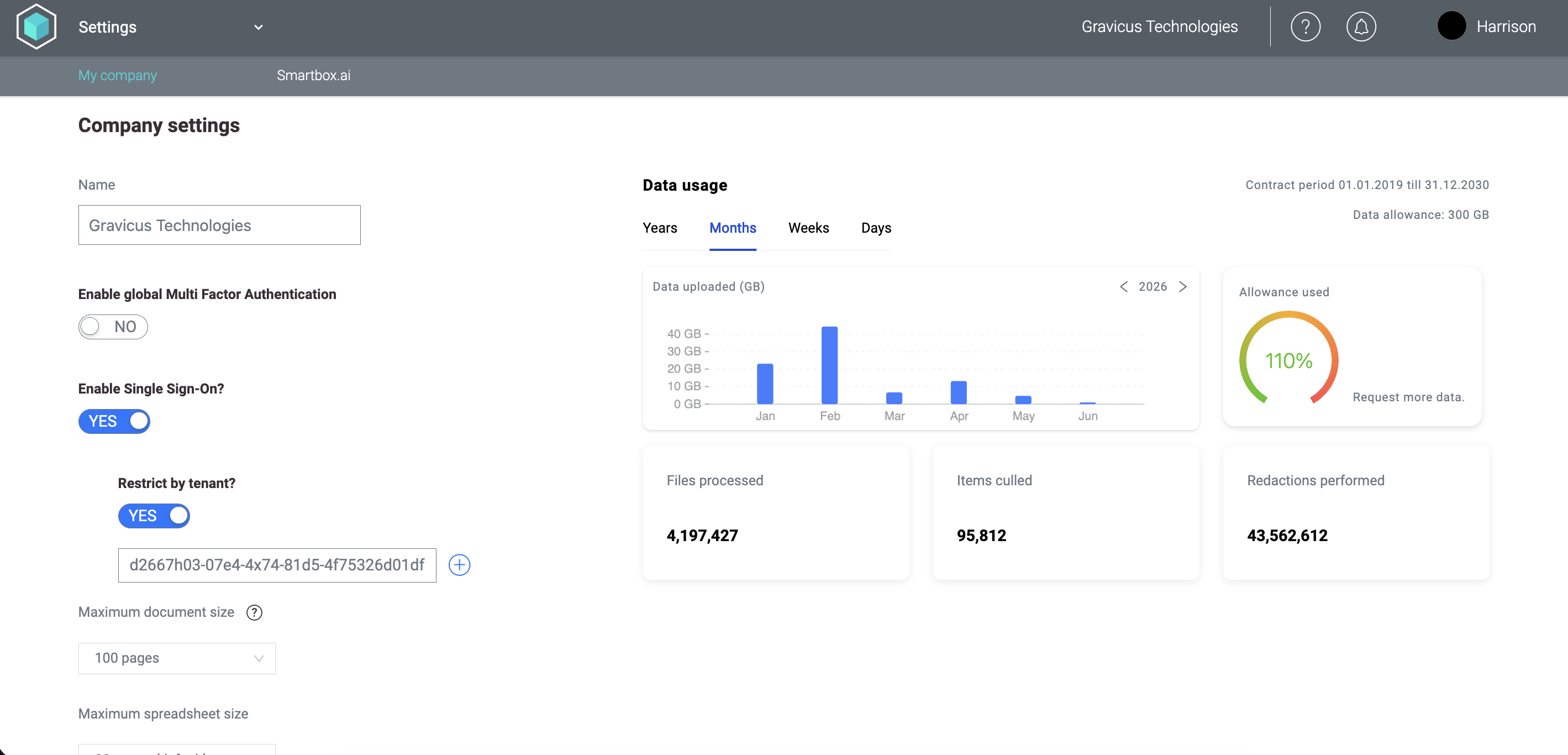
- Click "Save changes".
- This will apply the setting to all users within your account.
Log in using SSO
- On the Smartbox login page, click the Sign In with SSO button.
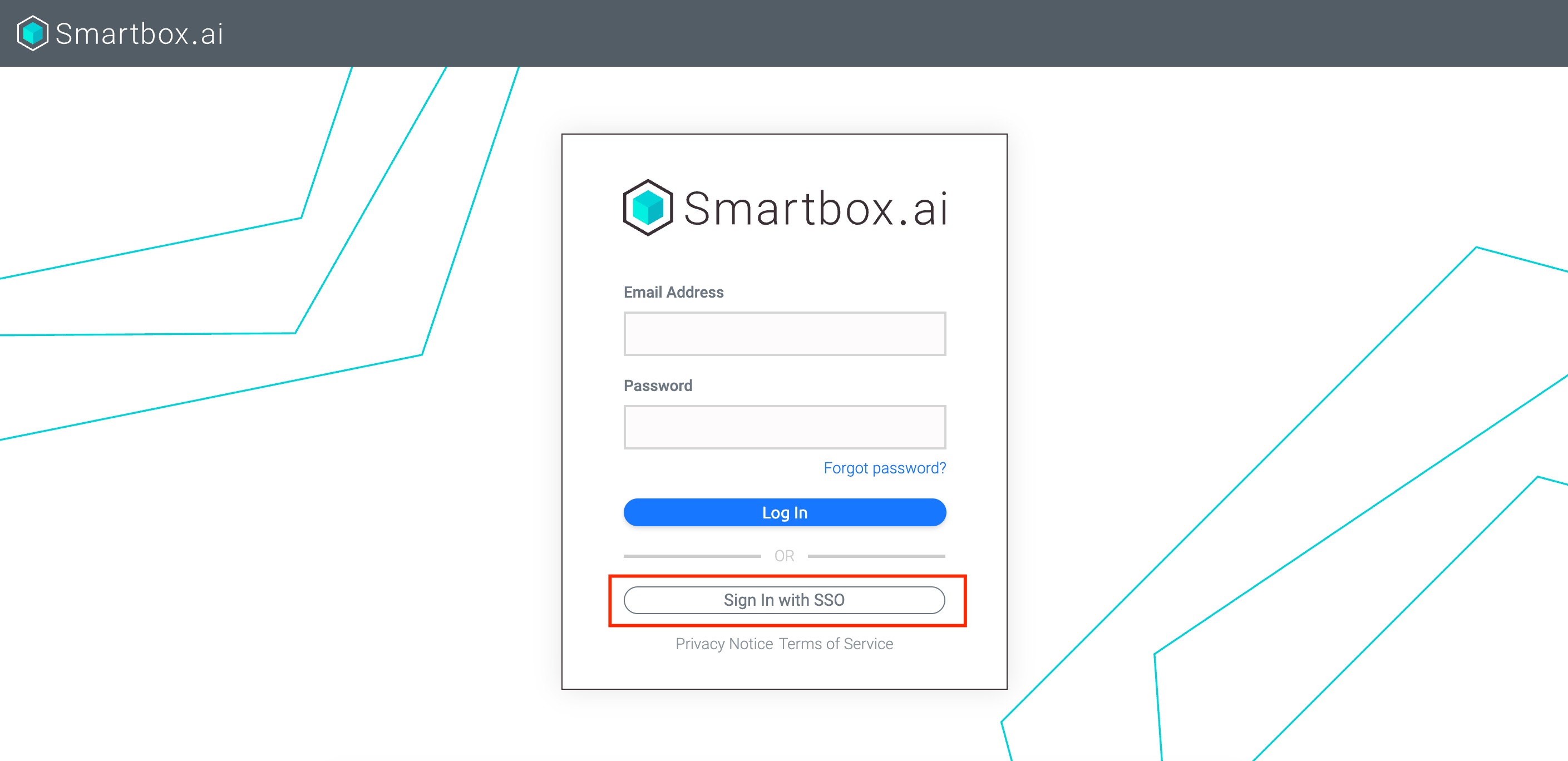
- Select the button for your third-party provider.
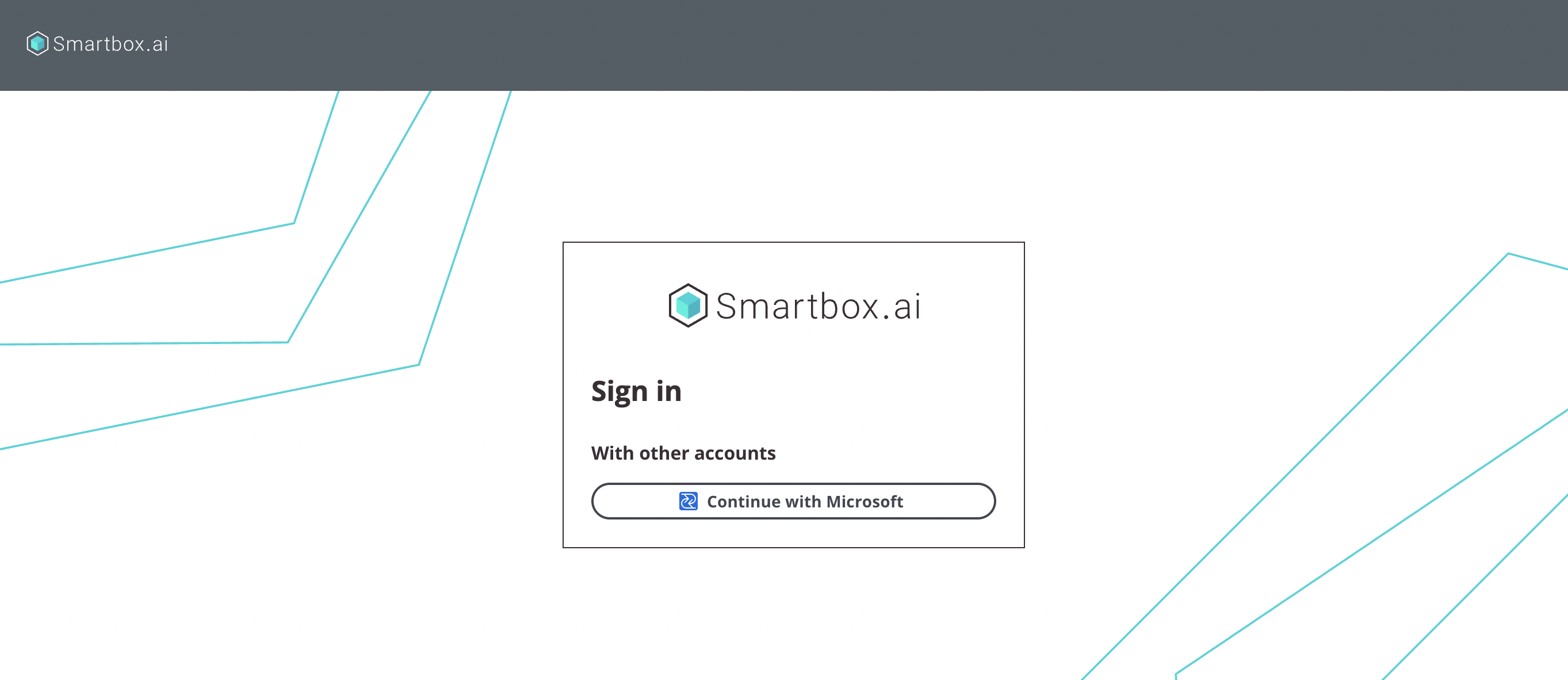
- Follow the instructions to sign into your corporate account.
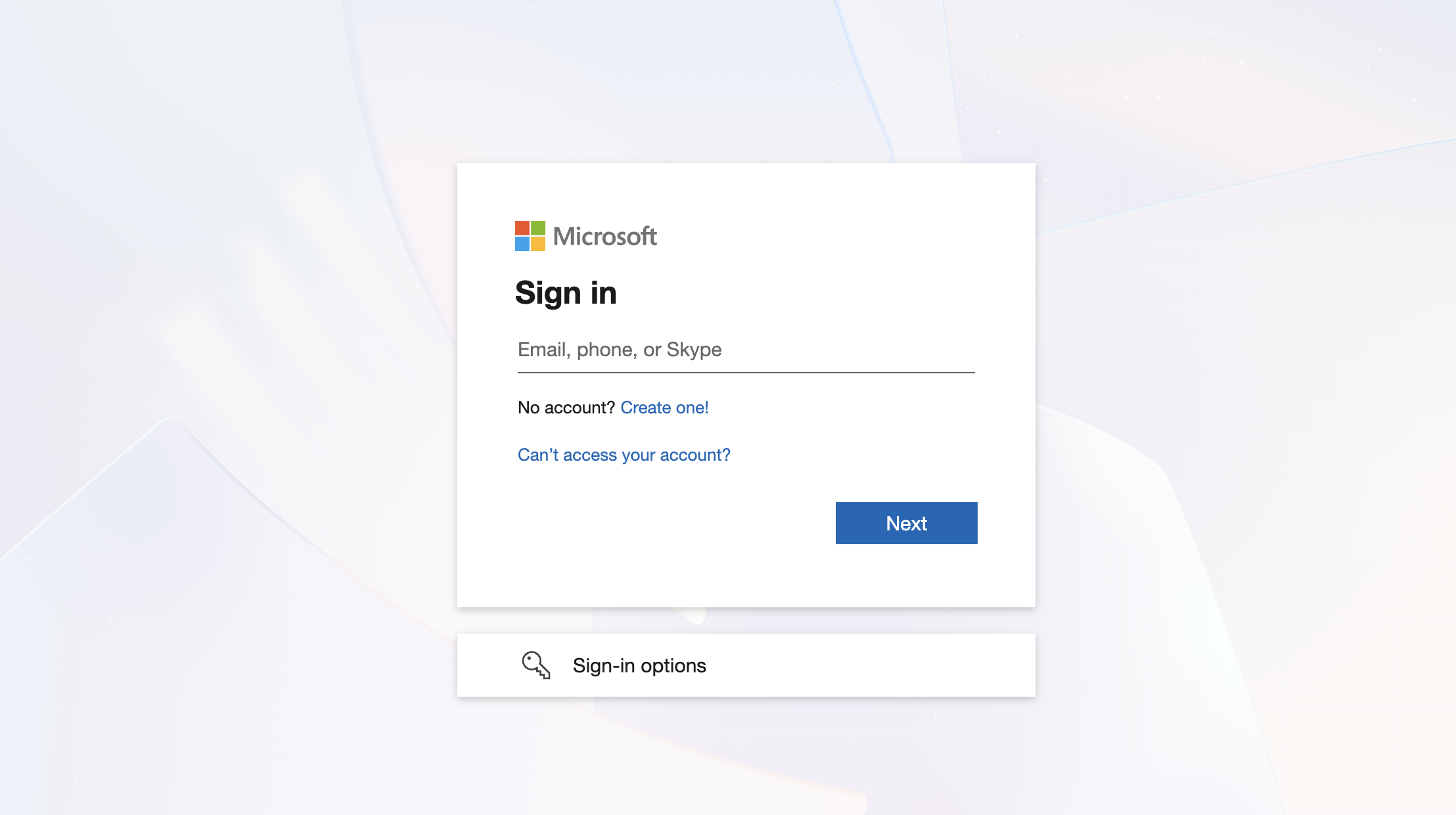
- If this is your first time signing in, you may see a consent screen asking you to allow Smartbox.ai SSO to access basic profile information (e.g., name, email). Click Accept to continue.
- After authenticating you will be redirected to the Smartbox homepage.
Additional access controls
For increased security, the following controls in Microsoft Entra ID can be used to restrict Smartbox access to only those who require it.
- Enabling the Assignment required? setting in Enterprise App Entra ID allows you to choose the specific users or groups you would like to be able to sign into Smartbox. More info [External link].
- Using Conditional Access policies can restrict this further, by blocking or granting access based on specific rules or conditions e.g. IP address, device or location. More info [External link].
Was this article helpful?
That’s Great!
Thank you for your feedback
Sorry! We couldn't be helpful
Thank you for your feedback
Feedback sent
We appreciate your effort and will try to fix the article